
In this tutorial, I will show you how to reserve a study room in the library. Whether you need a quiet space for individual study or a collaborative environment for group work, we’ve got you covered.
We have three types of study rooms that you can reserve
Group Study Rooms with Blue Doors
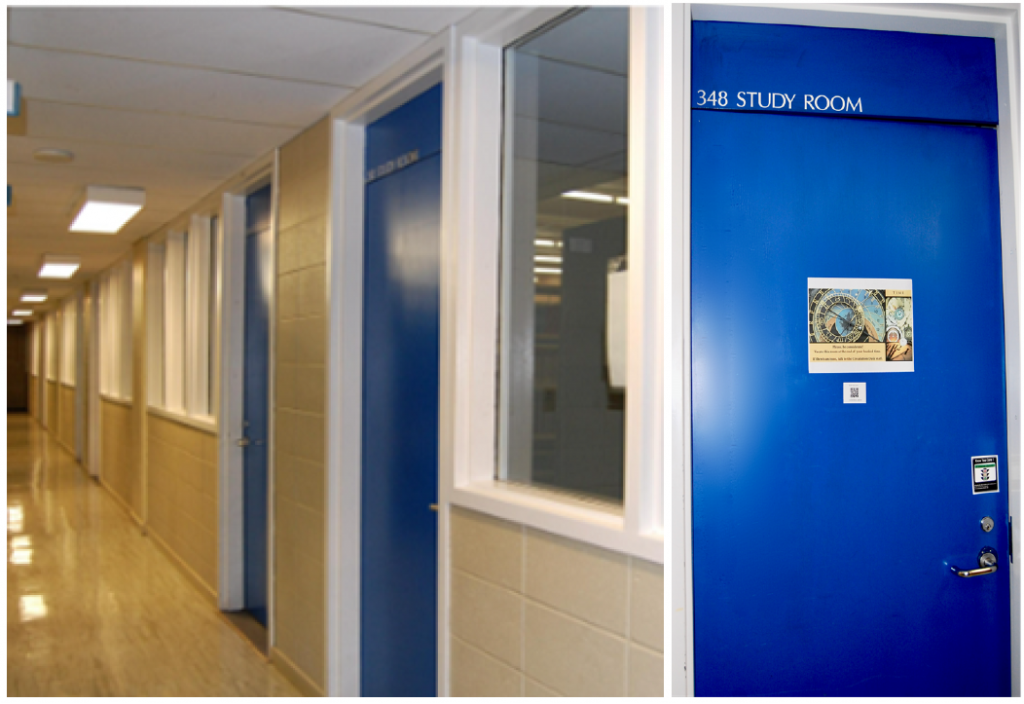
These rooms are designed for group work and can accommodate up to 6 people.
Group Study Rooms 260 & 261 are located on the first floor in the Collaboratory Area.
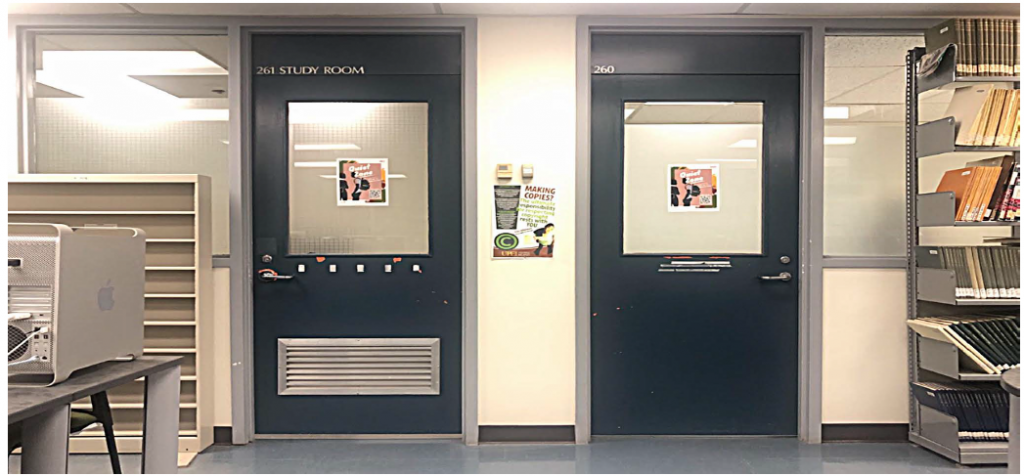
The rest of the group study rooms are located on the second floor. Group Study Rooms are equipped with white boards, computers, and TV screens. While these rooms are intended for collaboration, they are not soundproof. Please remember to keep conversations quiet and use inside voices.
Individual Study Rooms with Yellow Doors
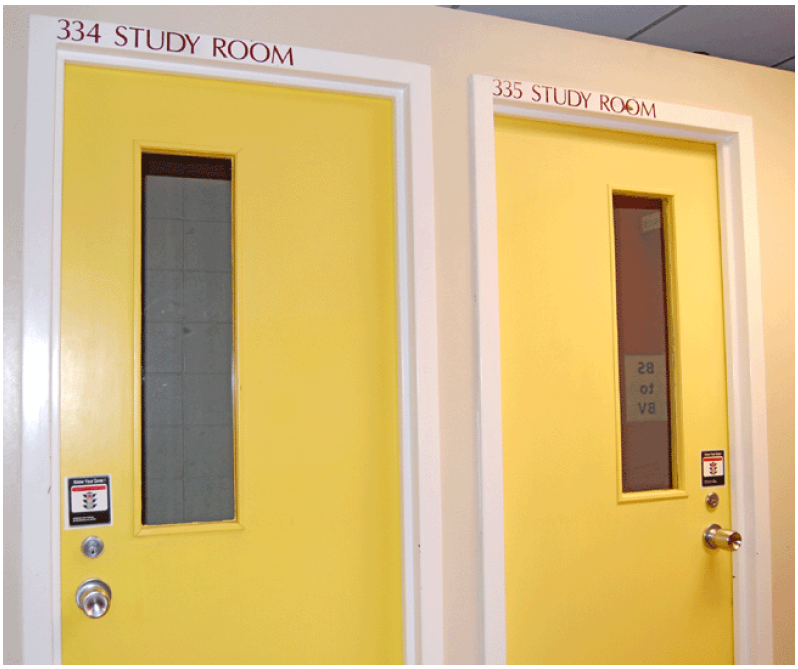
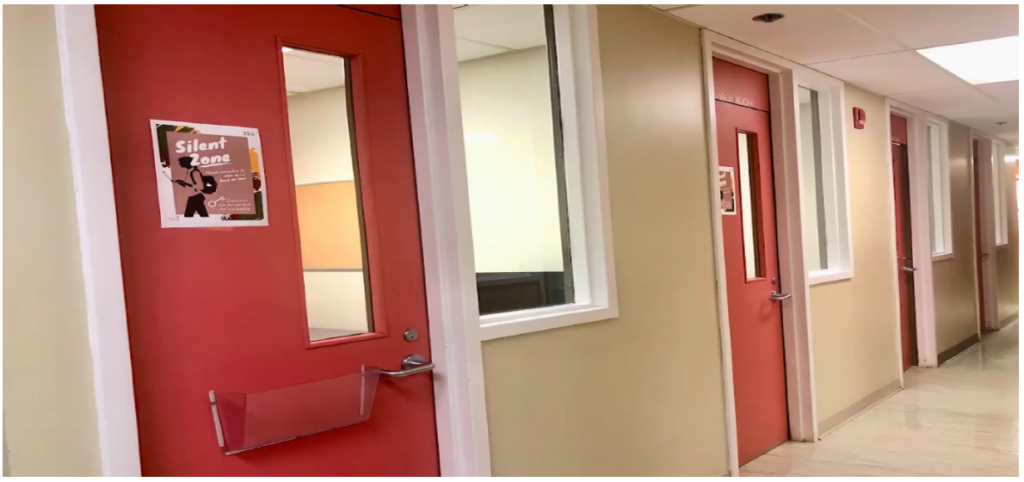
These rooms provide a quiet, distraction-free environment for solo study. Individual study rooms are part of the silent zone, meaning noise and talking are not allowed. Individual study rooms are located on the upper floor of the library.
To book either the group study rooms or individual study rooms, go to the Library Homepage and hover over the Book A Space icon at the top of the page.
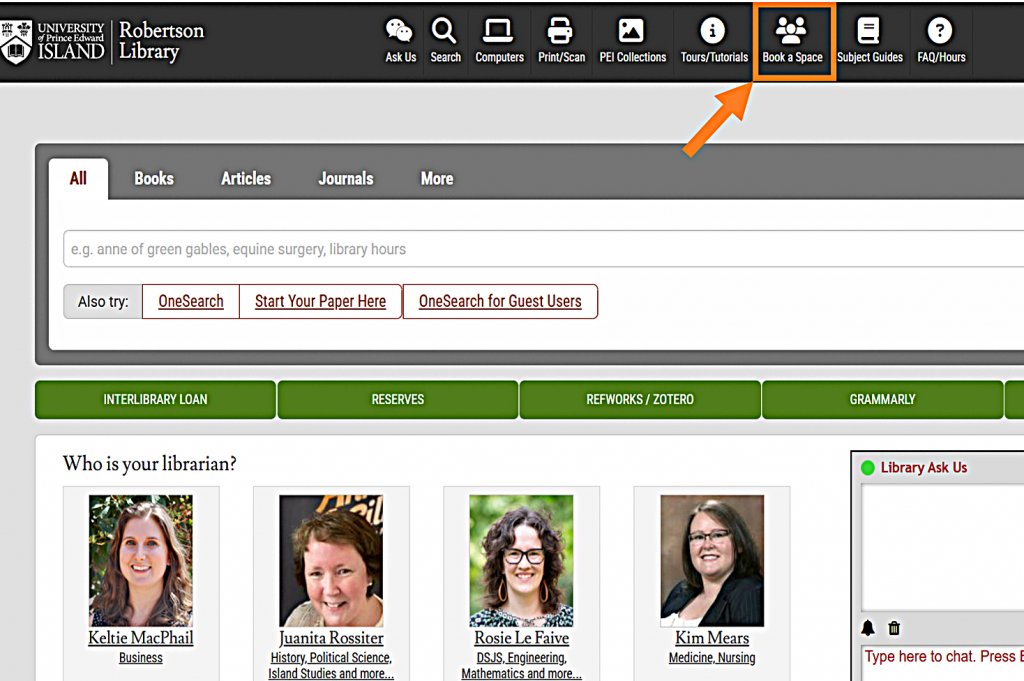
Once you're on the 'Book a Space' page, you can either click the 'Book a Space Now' link highlighted in green or select the 'Book a Room Now' link in red.
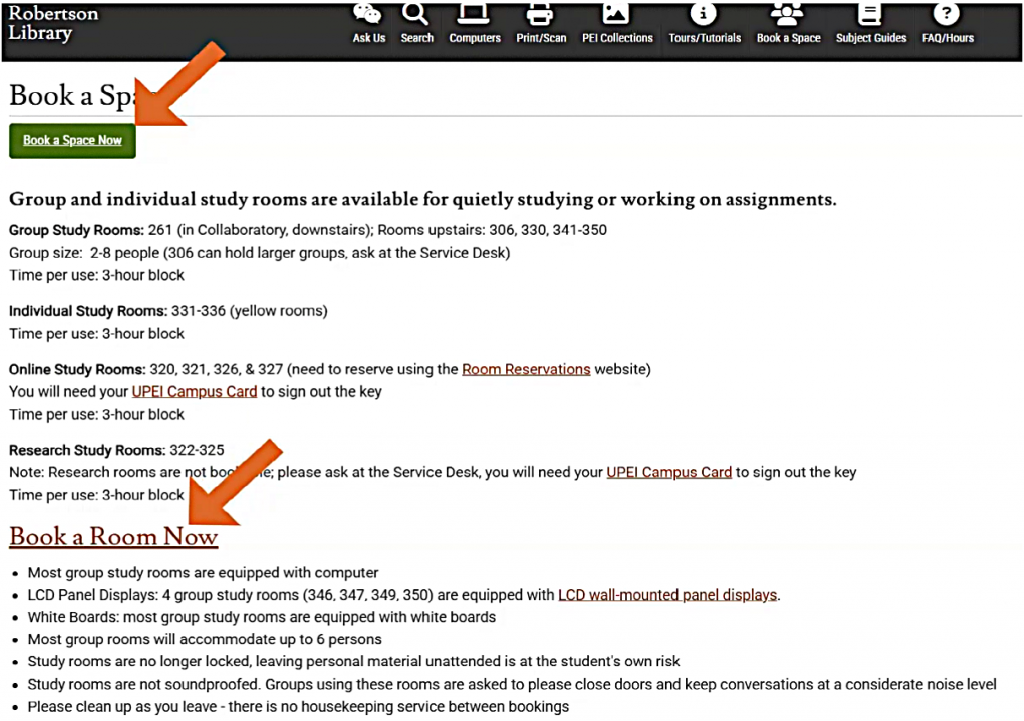
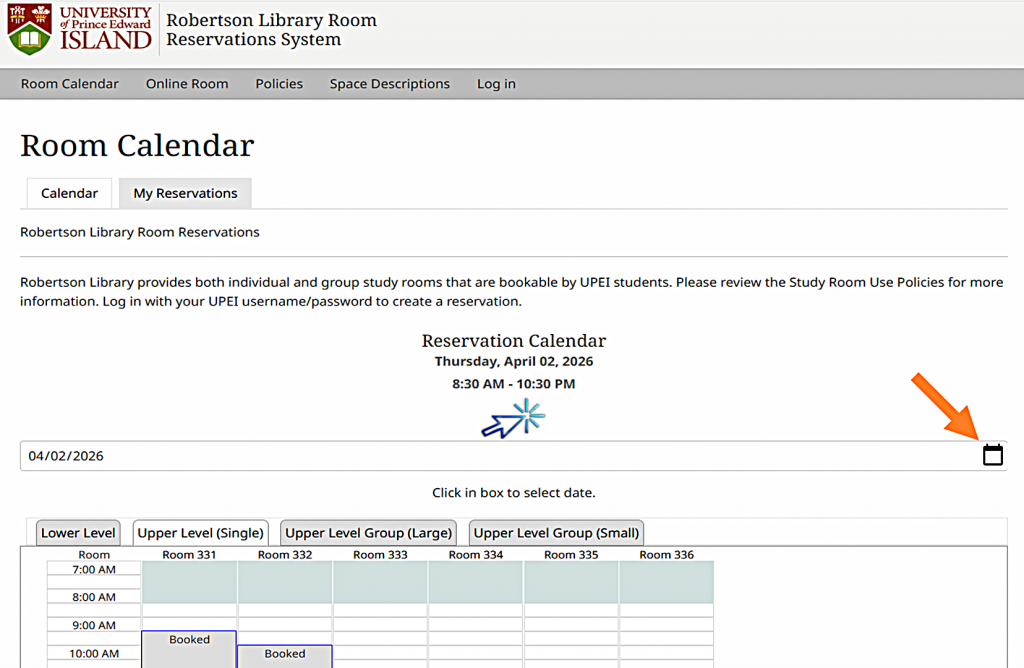
Clicking either of those links will bring you to the Room Calendar page.
Choose your desired date from the dropdown menu. You can book a room up to two weeks in advance.
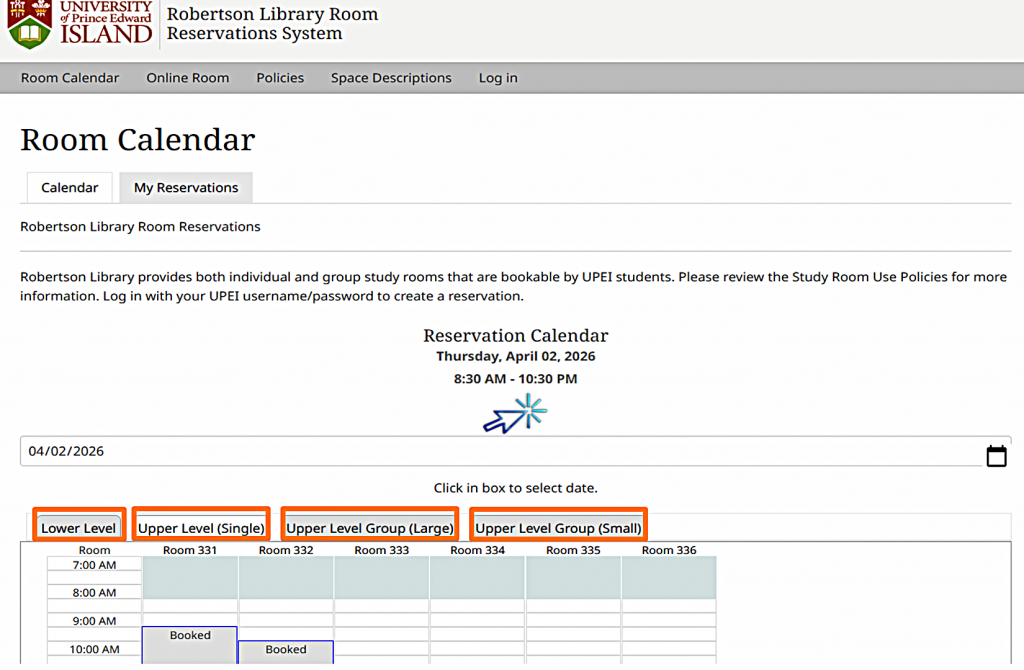
Use the tabs to choose the type of room you need.
For example, to book a single study room, click the tab labeled "Upper Level (Single)." The room numbers will show up. Gray time slots indicate the room is already booked for that time.
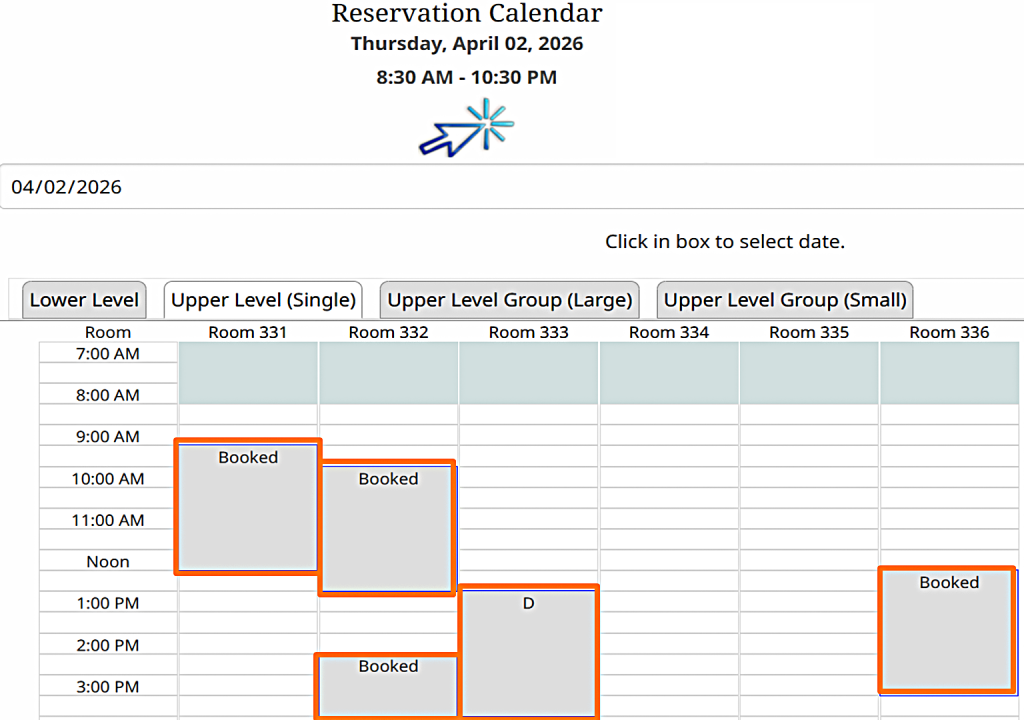
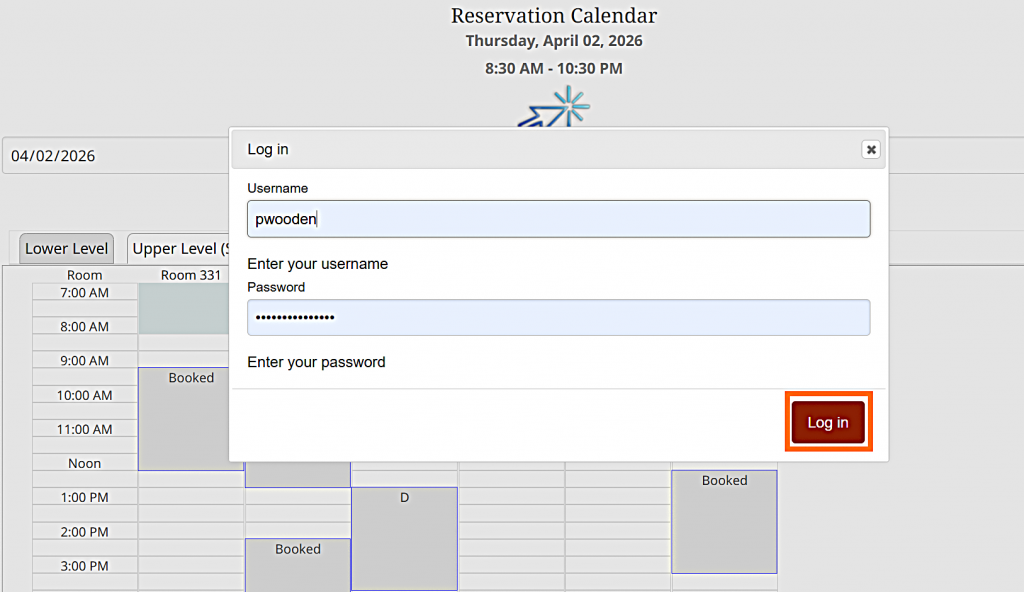
Once you’ve selected a room and time slot, click on it. You’ll be prompted to log in using your UPEI username and password.
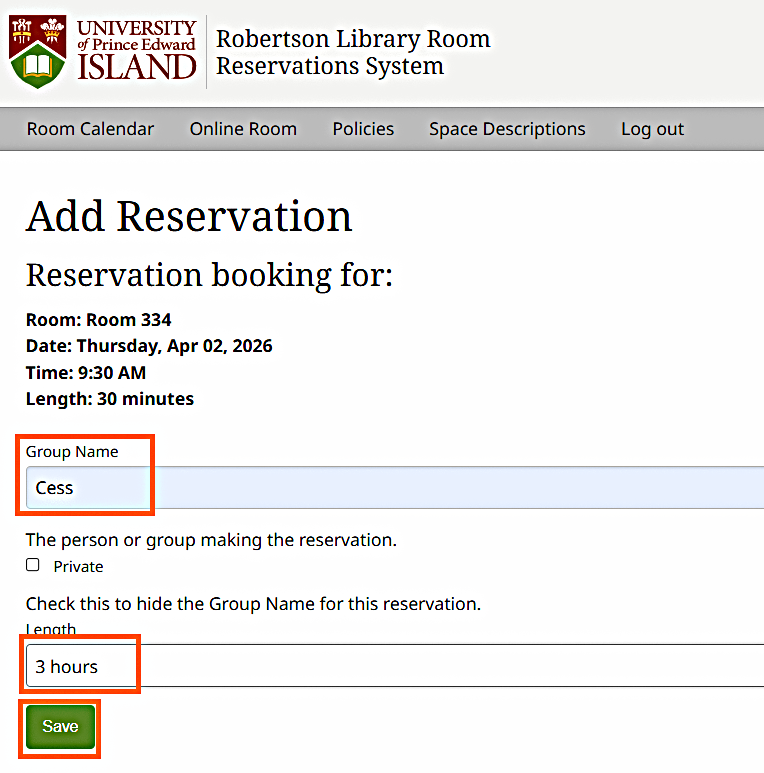
Enter your name or group name in the provided space. Choose your reservation length, from 30 minutes up to a maximum of 3 hours. Click Save to confirm your booking.
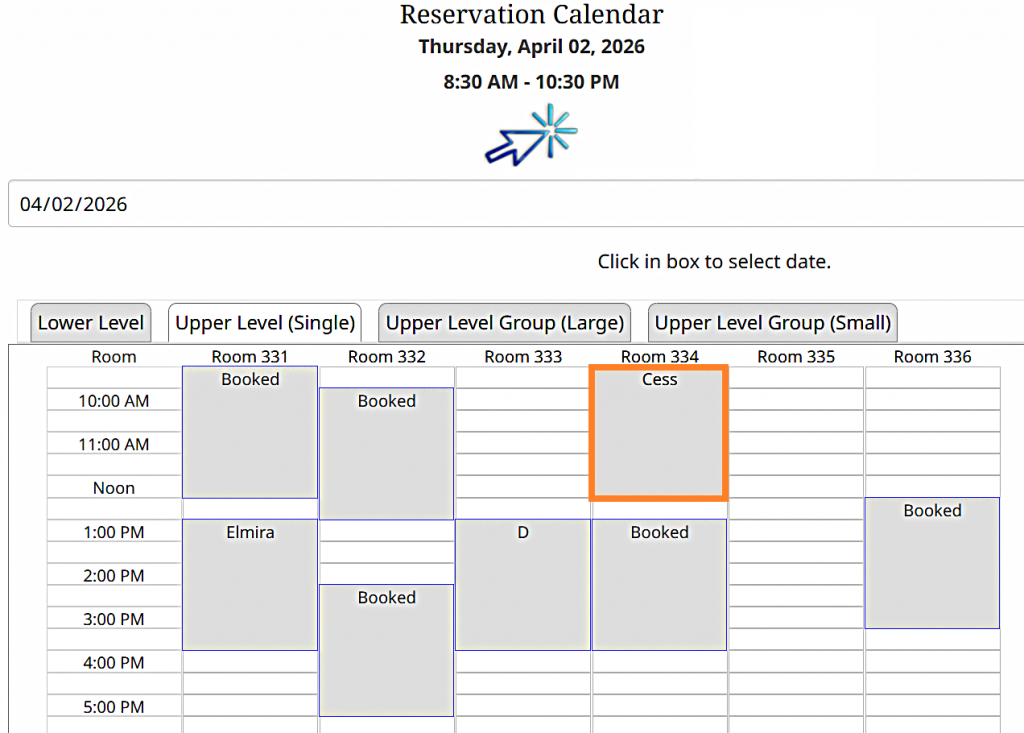
You can view your booking on the Room Calendar page by clicking on the calendar tab and locating your name.
You can go directly to the room at your reserved time.
Online Study Rooms
Online study rooms come equipped with computers, and you’ll need a key to enter.
To book one, go to the Library Homepage and hover over the Book A Space icon at the top of the page.
Then, in the Online Study Rooms section, click the “Room Reservations” link. This takes you to a separate calendar, but it works the same way as the calendar for other study rooms.
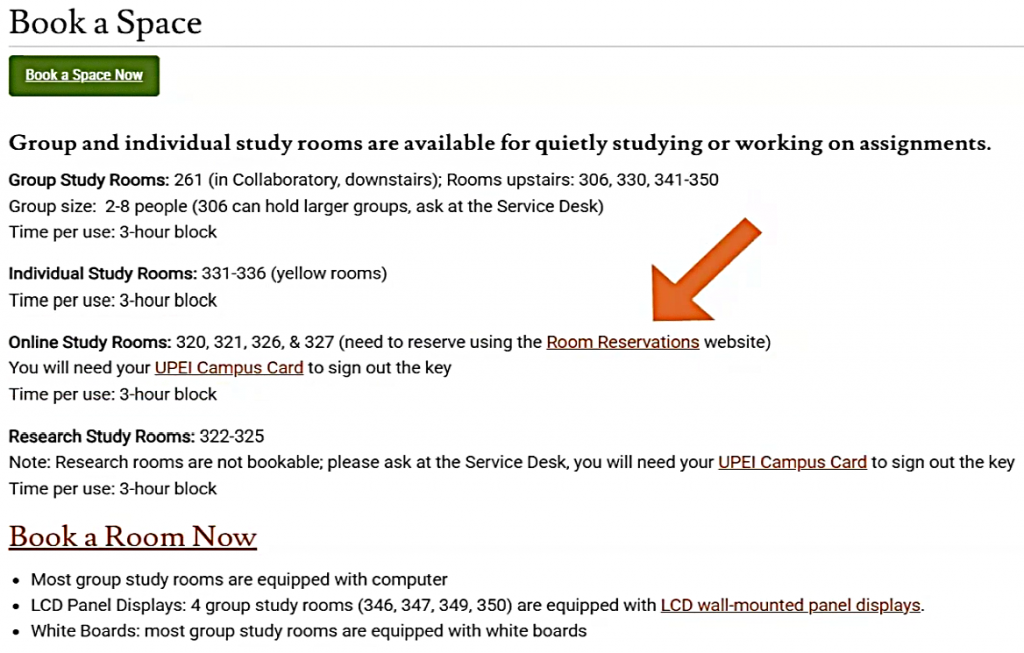
On your reserved day and time, visit the Service Desk to sign out the room key. Make sure to bring your UPEI campus card with you.
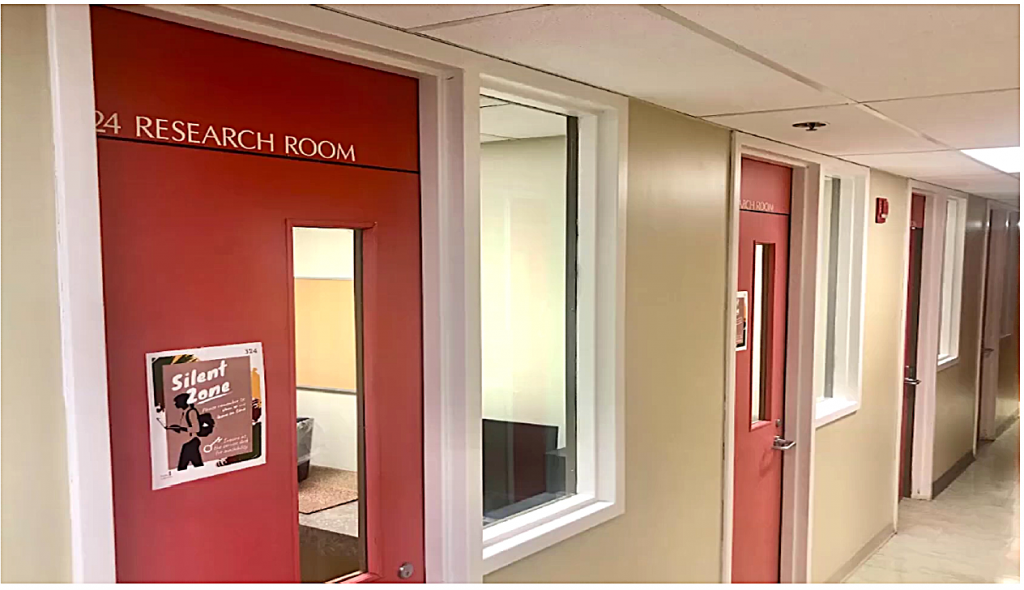
We also have four Research Study Rooms that are available on a first-come, first-serve basis for up to three hours. Just ask at the Service Desk to find out whether any are available. You will need your UPEI campus card to sign out the key.
Cancelling Your Room Reservation
If your plans change and you no longer need the room, please cancel your reservation to free up the space for others. You can cancel by sending a message through the Library Ask Us chat, visiting the Service Desk, calling us at 902-566-0583 or emailing us at reference@upei.ca.
A video version of this tutorial is also available.