
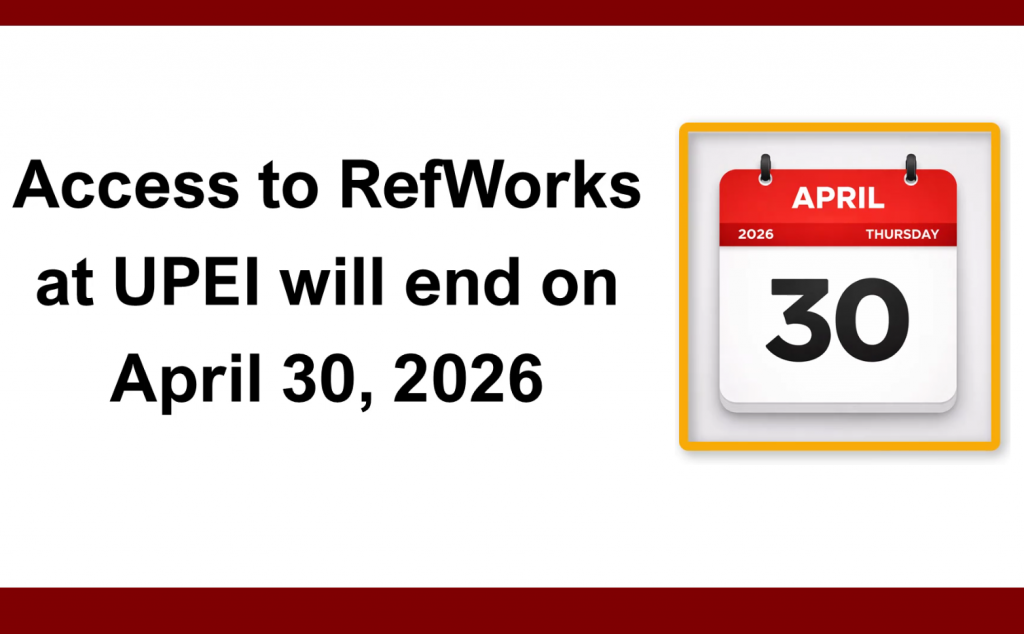
UPEI users will lose access to RefWorks after April 30, 2026. While we had originally scheduled this cancellation for 2027, a cut to the Library’s budget has moved it up by a year.
April 30th is the deadline to export citations or attachments from your RefWorks. Make sure you export everything you might want to access in the future.
This tutorial will show you how to export your content from RefWorks. It will also include some advice about importing citations into Zotero, the citation manager our library now recommends. Even if you do not plan to use Zotero, we strongly encourage you to export your RefWorks data now, save it somewhere reliable, and back it up.
Important Considerations
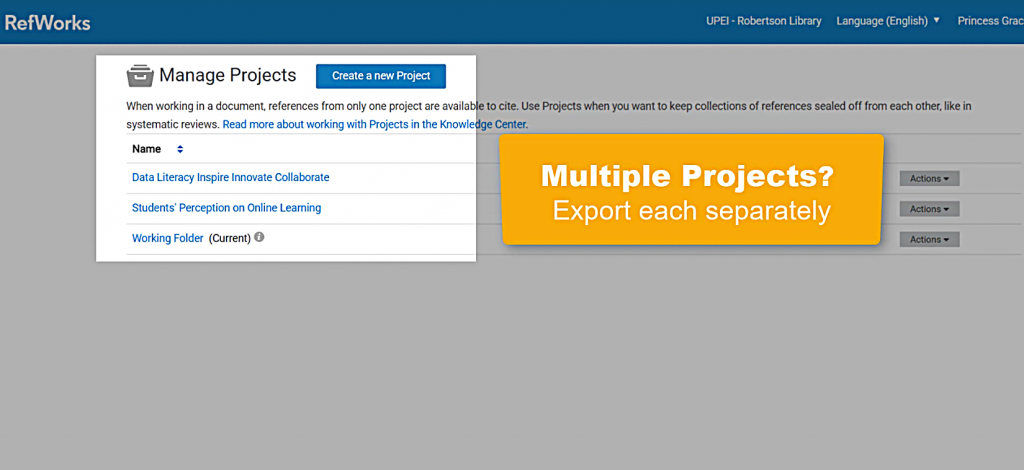
- If you have multiple Projects in RefWorks, you will need to export data from each of them separately.
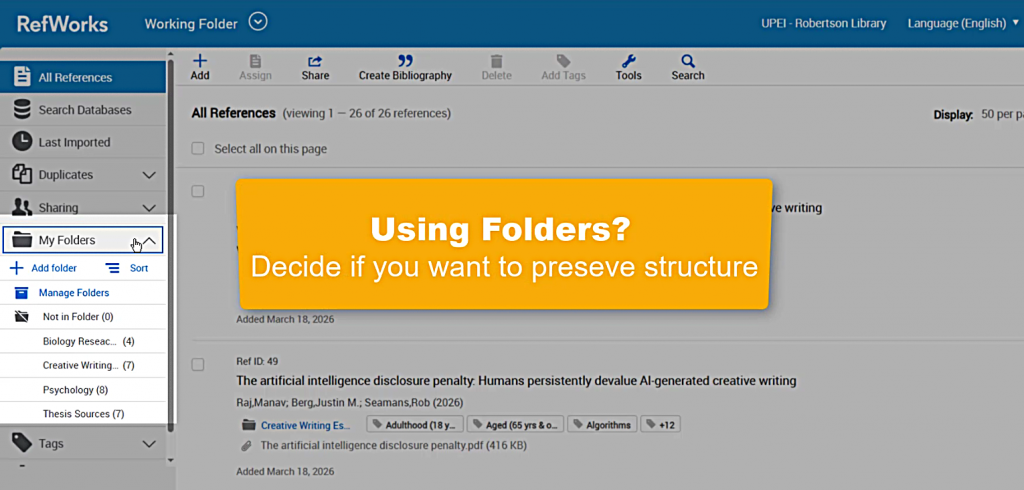
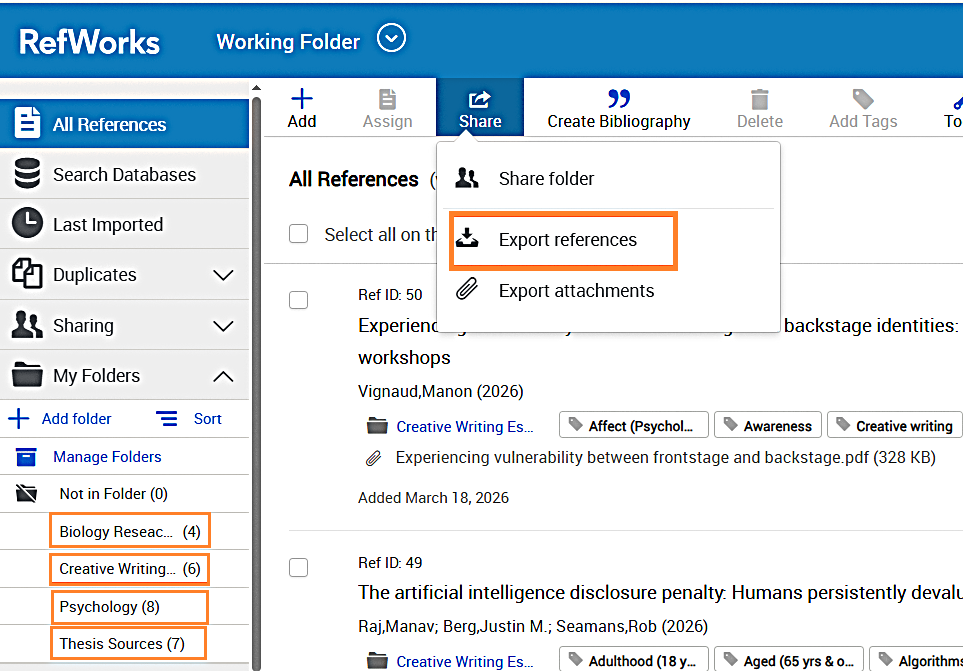
- If you use Folders in RefWorks, you will need to decide whether preserving your file structure is important. If you want to keep your references in their folders, you will need to export data from each of them separately.
- PDFs and other files will not export with your citation data. You can export them separately, and you will need to manually reattach them to the relevant items in Zotero or another citation manager.
.PNG)
Setting Up Zotero
If you want to continue using a citation manager for your data, we recommend Zotero. We have a separate guide to installing and setting up Zotero. You can do that now if you’d like to work efficiently, but you can also do that later.
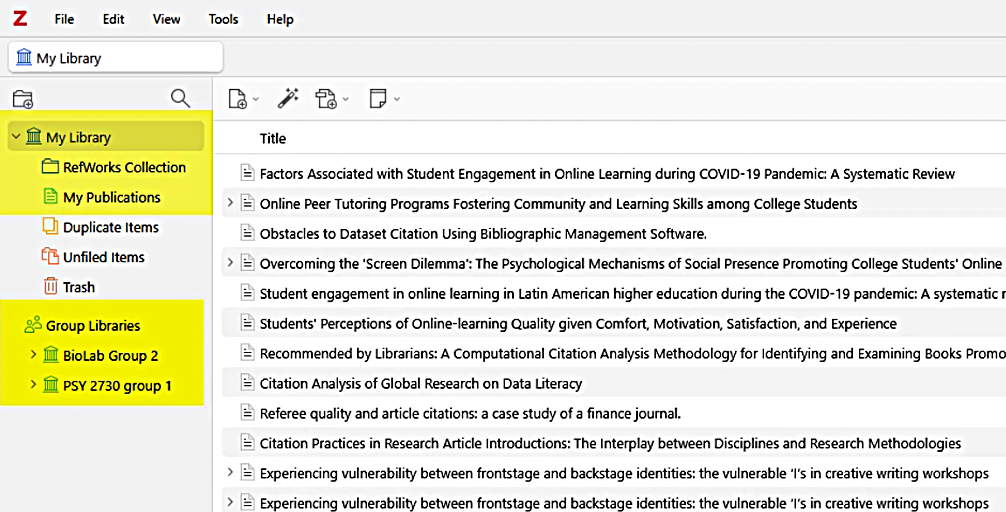
When you set up Zotero, you can set up “Collections” to mirror the folders you used in RefWorks.
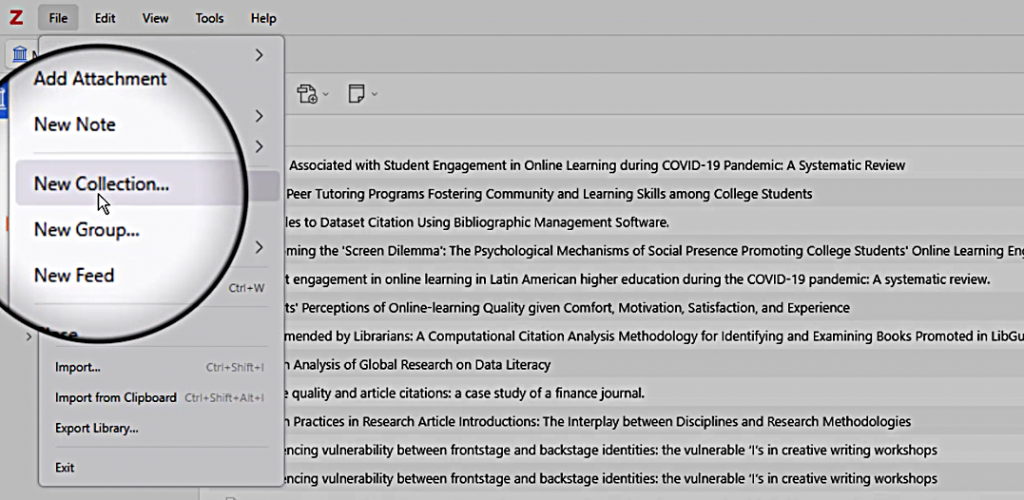
If you have shared projects with other users, you should set them up in Zotero as “Groups.”
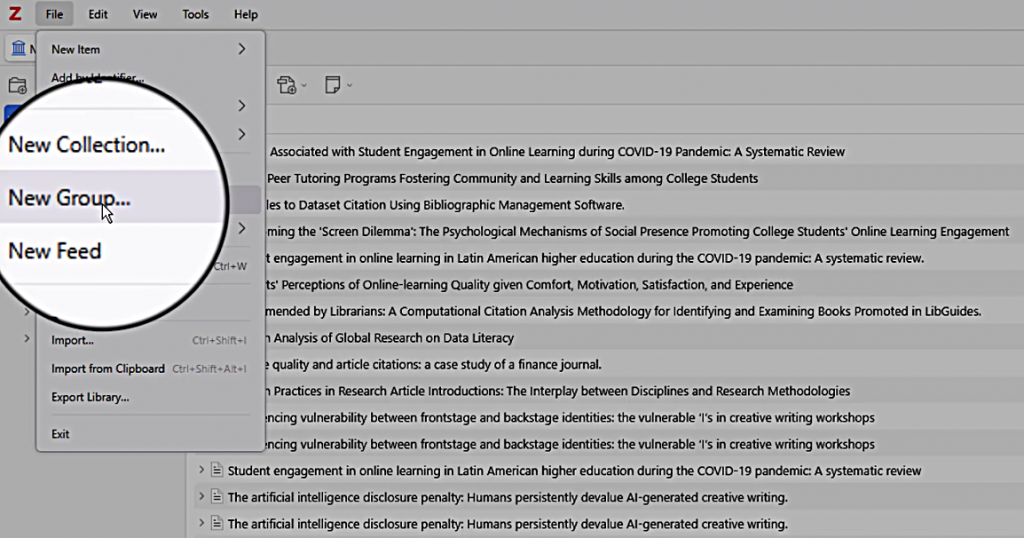
Your subject librarian can help you build the structure that makes sense for you.
Exporting from RefWorks
For each project or folder in RefWorks, decide which references you want to export.
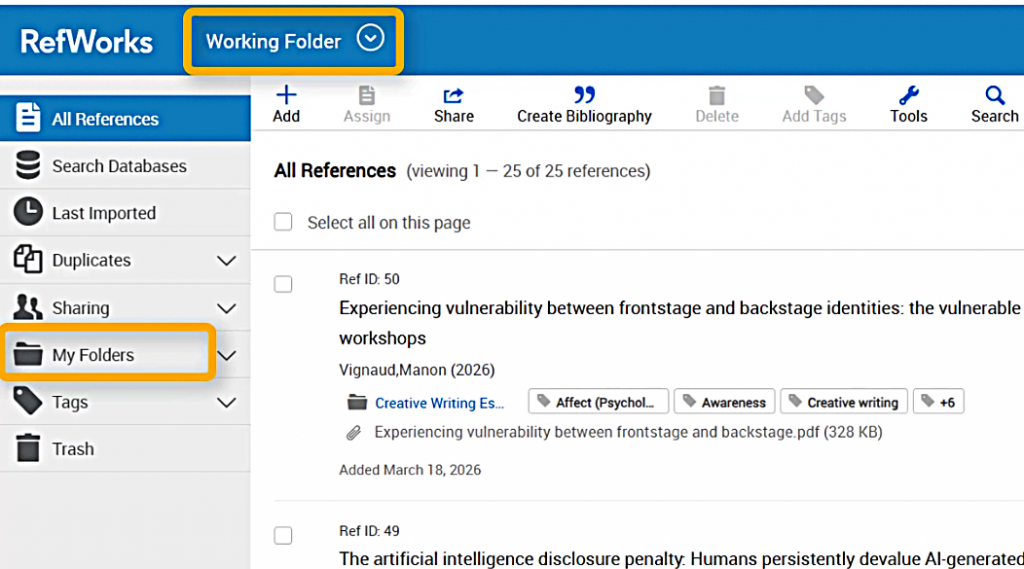
If you want to export all of the references, select the “Share” button.
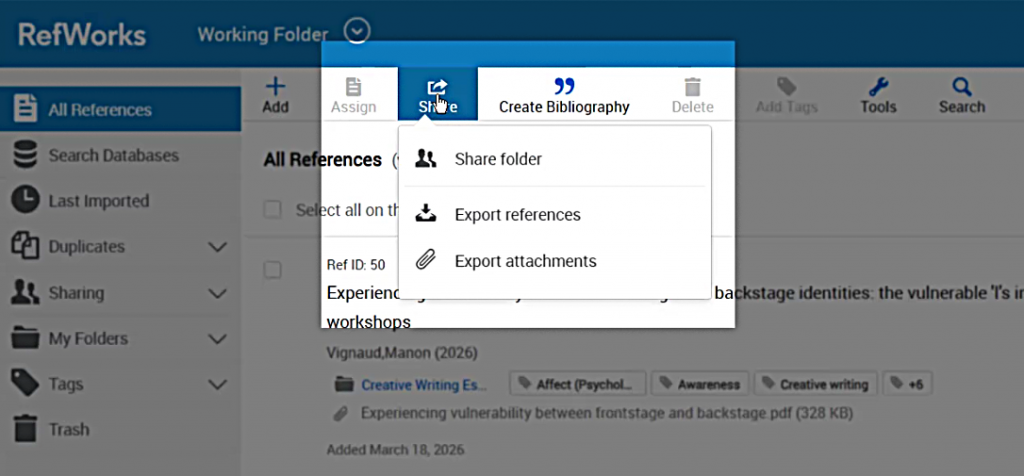
If you want to export only certain references, select them using the checkbox on the left, then select “Share.”
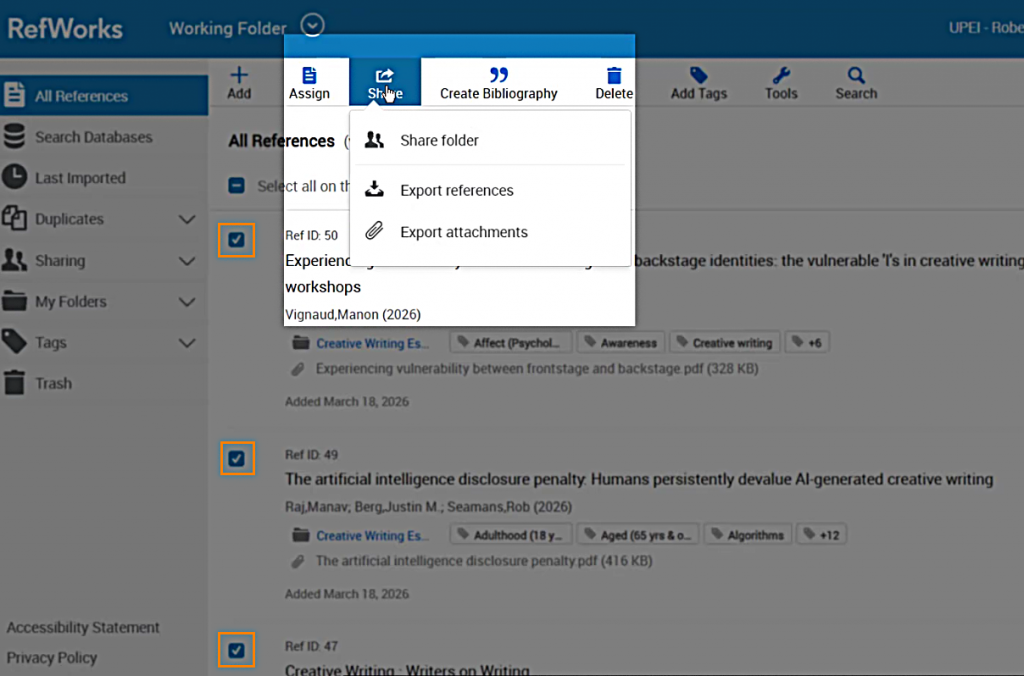
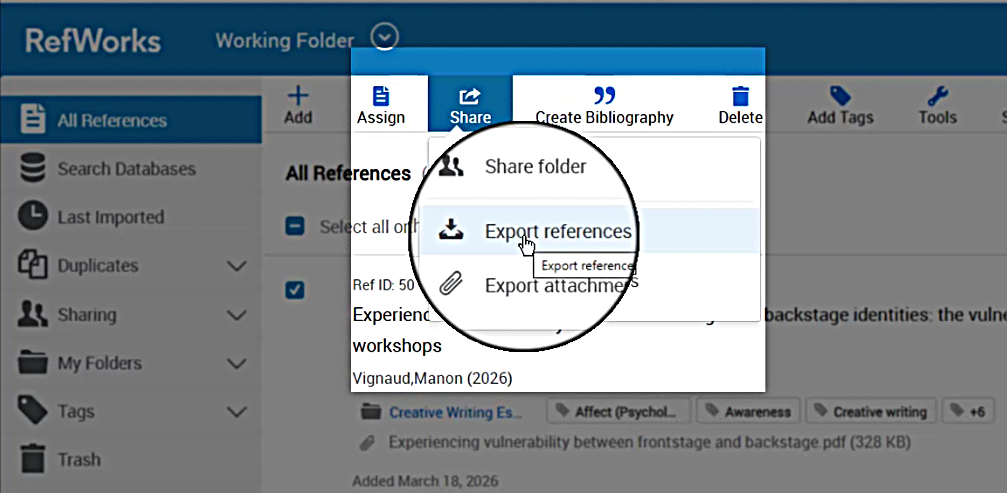
From the Share menu, choose “Export references.”
Zotero should be able to use references in any of the available formats, but we recommend using the RIS Format.
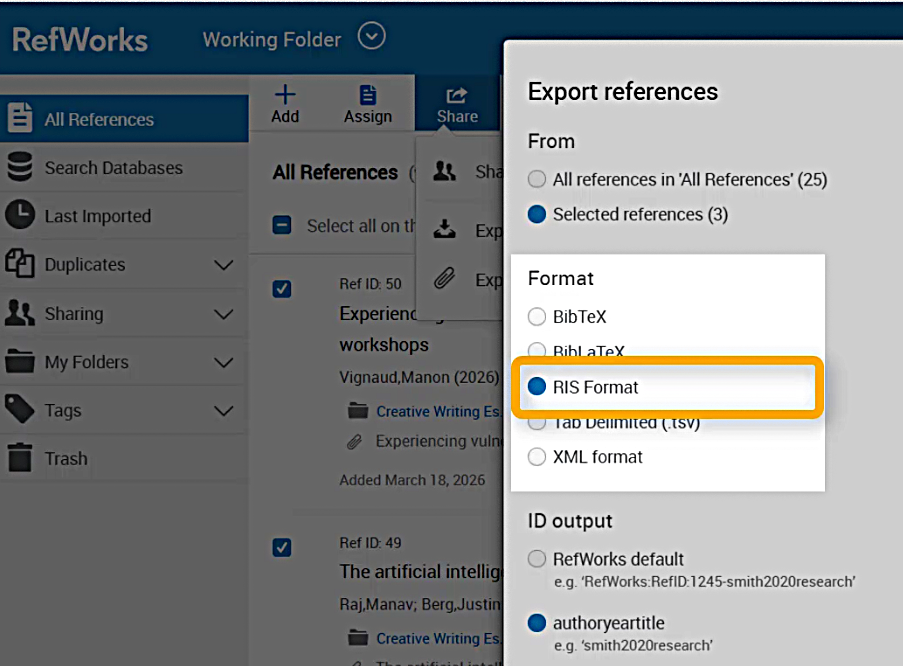
You can also choose how you want your files labelled; authoryeartitle will be the easiest to find when searching your file system.
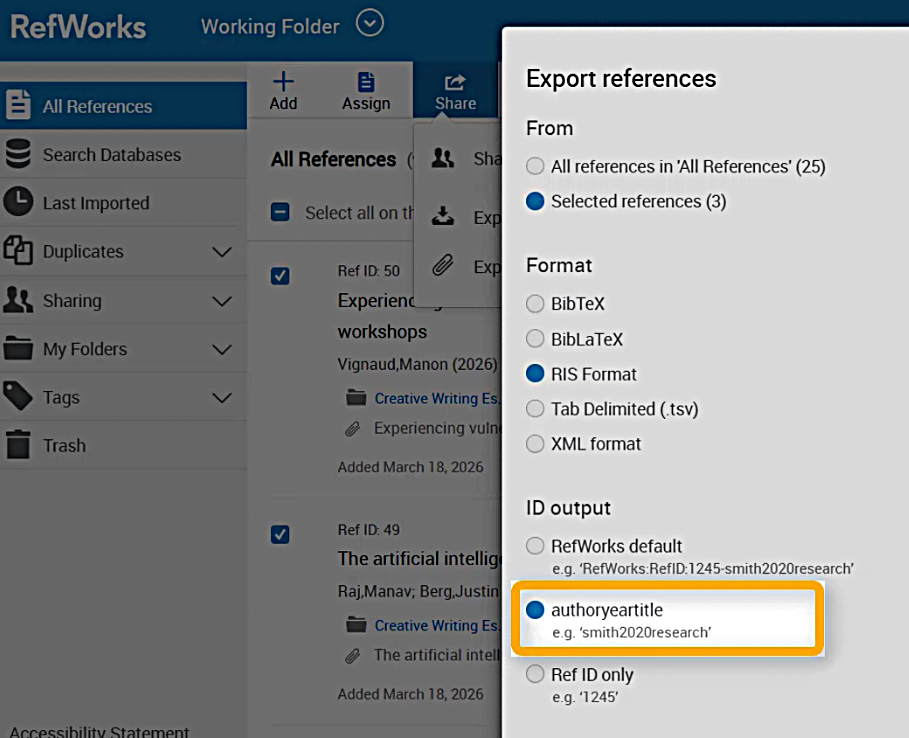
After you’ve made these selections, choose Export.
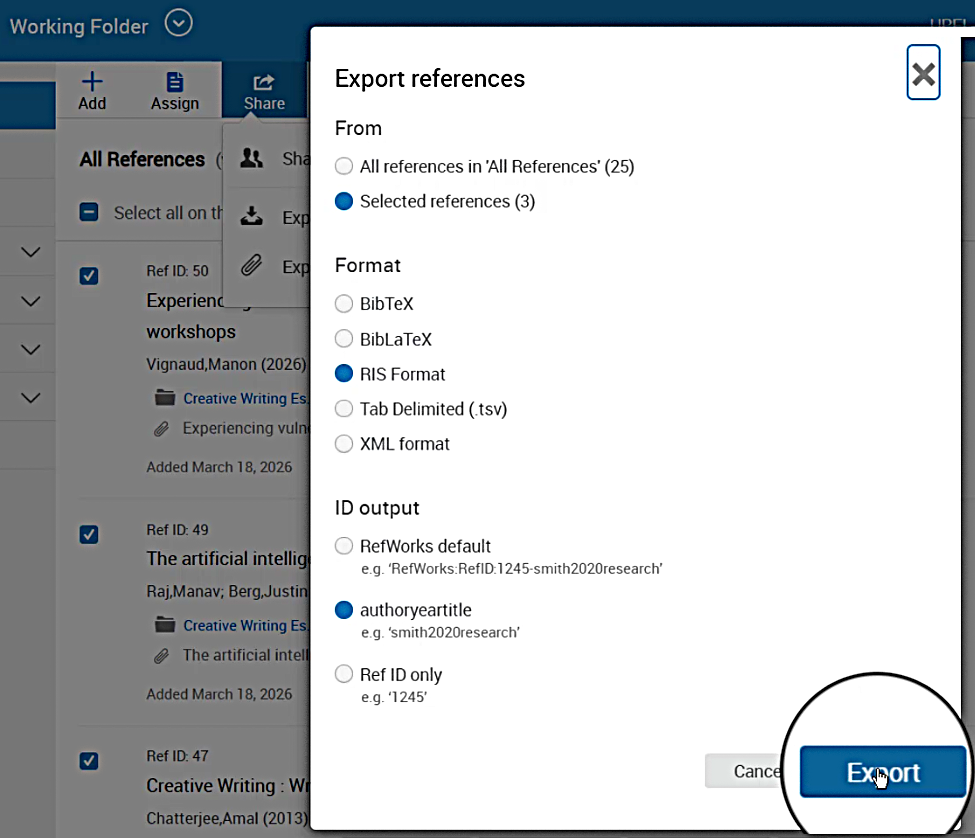
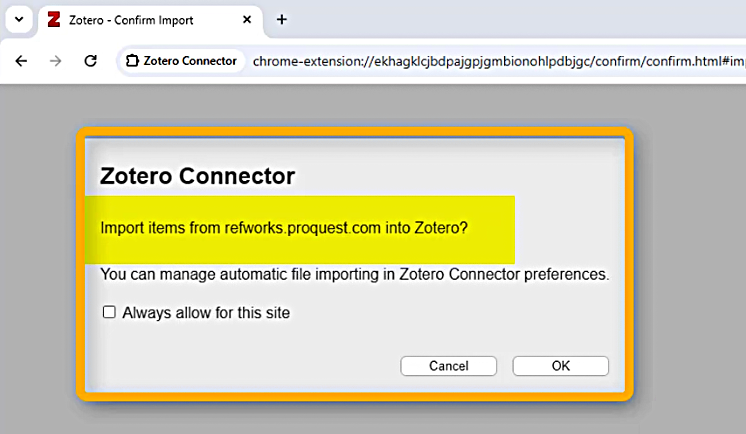
If you’ve already installed the Zotero Connector browser extension, it will offer to import your RefWorks items directly into Zotero.
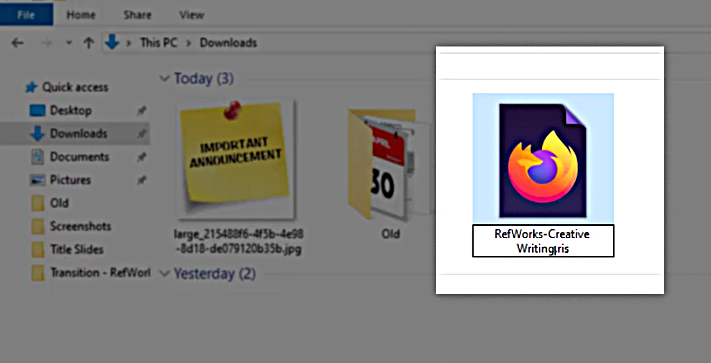
Otherwise, an RIS file will be downloaded onto your computer into your usual downloads location.
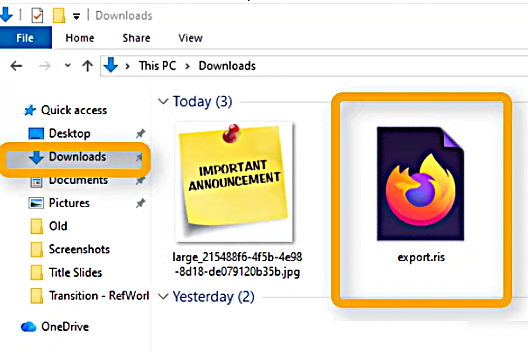
If you are not importing your references into Zotero or another tool immediately, make sure this file goes into a location that you will be able to find–and that you can back up. We also recommend changing the file name to match the project or folder that was exported.
Export Attachments
If you would like to download PDFs and other attachments for those same references, you’ll need to do that separately. Find the references with attachments you’d like to download, select “Share” again, and then choose “Export attachments.”
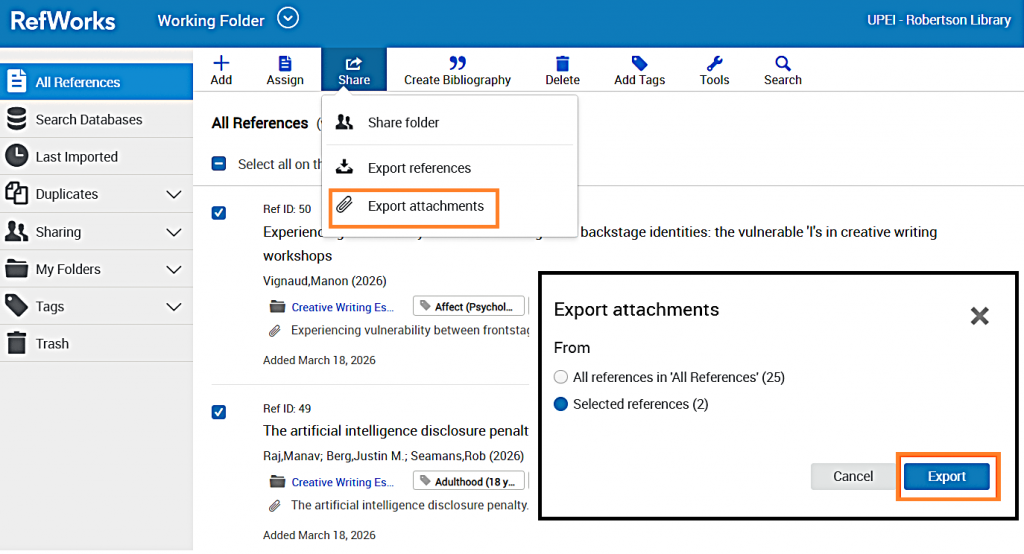
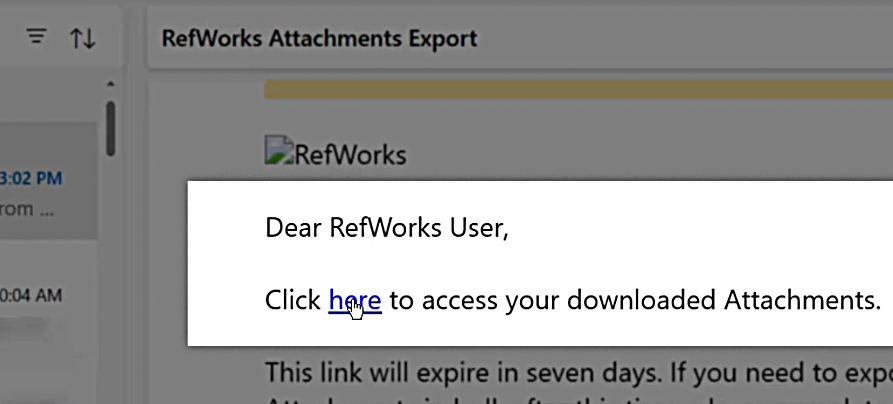
When you select “Export,” RefWorks will begin processing your request. You will receive an e-mail notification when your exported files are ready to be downloaded.
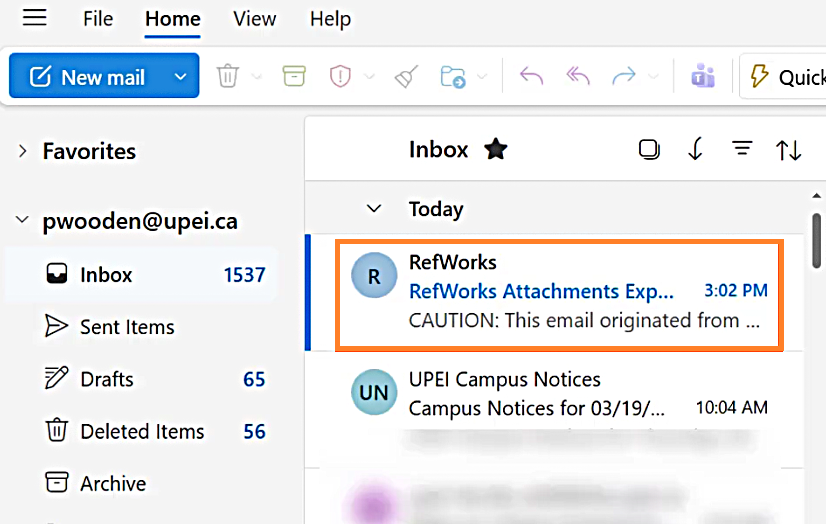
These attachments will not automatically reattach to their citations.
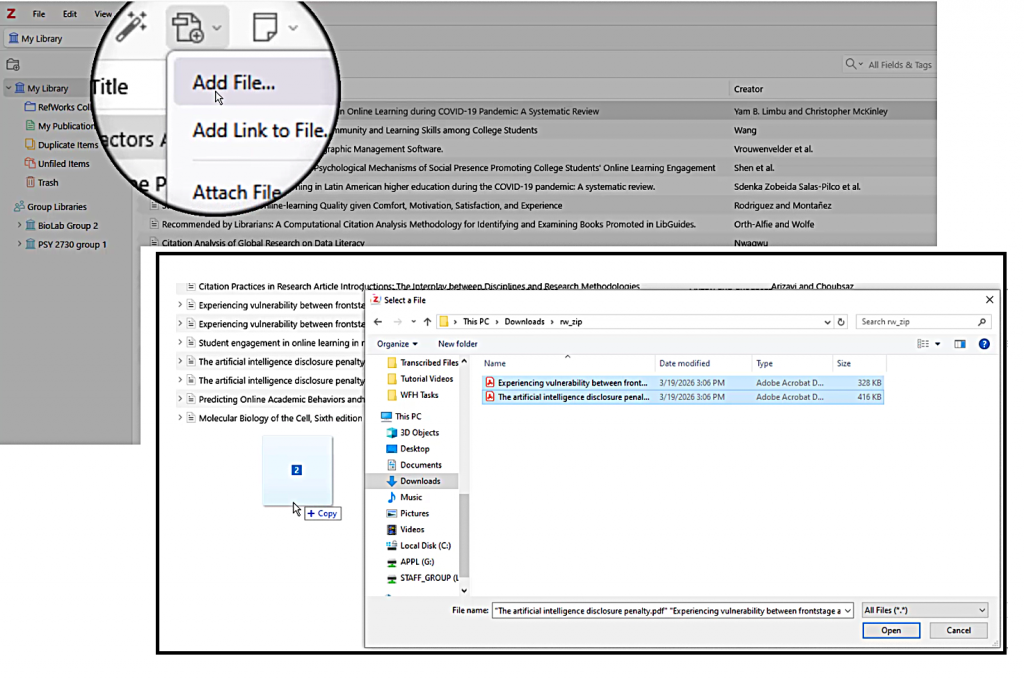
If you add the files to Zotero using the “Add file” option (or by dragging and dropping), it may be able to extract some metadata from the files that will help you merge them with the correct citations.
Repeat for Each Project/Folder
Make sure to repeat this export process for each project or folder that you want to keep.
Summary
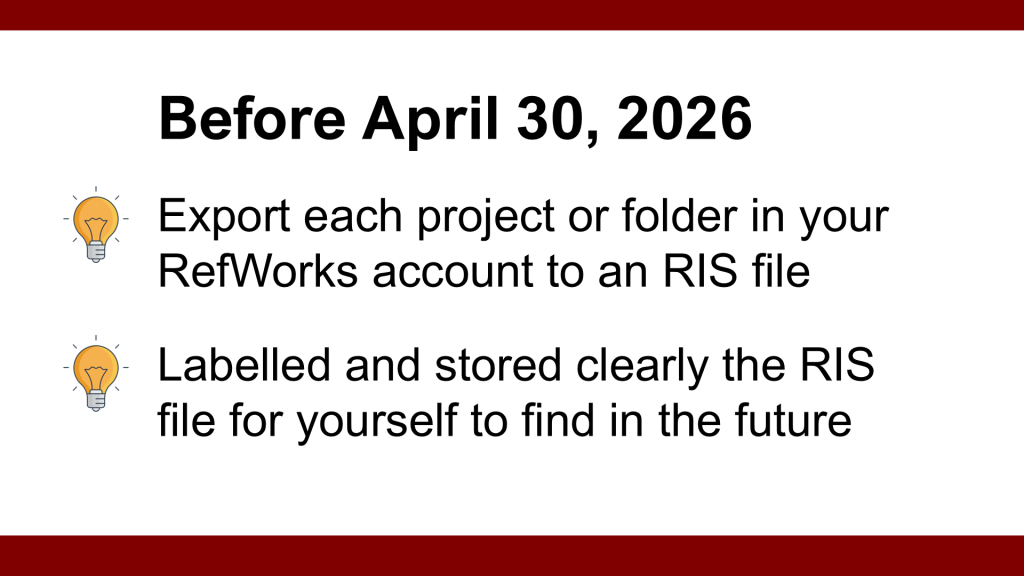
The most important thing you can do before the April 30th deadline is to export each project or folder in your RefWorks account to an RIS file that you have imported into Zotero or labelled and stored clearly for yourself to find in the future.
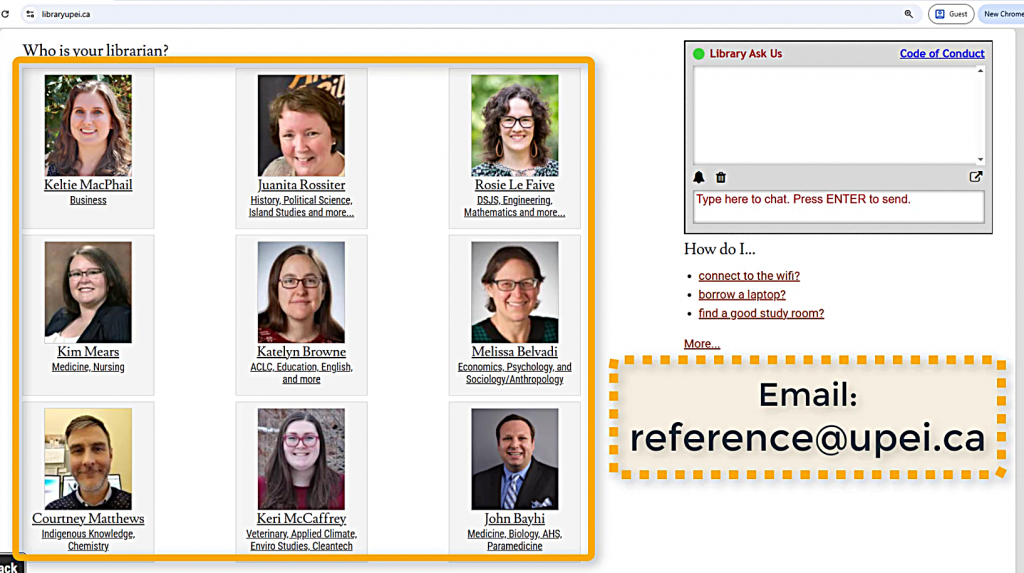
If you have questions or need support with a specific situation, you can reach out to your subject librarian or e-mail reference@upei.ca.
We are here for you!
A video version of this tutorial is also available.